
Discord Rich Presence Plugin for Navidrome


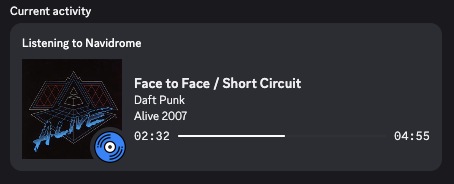
This plugin integrates Navidrome with Discord Rich Presence, displaying your currently playing track in your Discord status. The goal is to demonstrate the capabilities of Navidrome's plugin system by implementing a real-time presence feature using Discord's Gateway API. It demonstrates how a Navidrome plugin can maintain real-time connections to external services while remaining completely stateless.
Based on the Navicord project.
⚠️ WARNING: This plugin requires storing Discord user tokens, which may violate Discord's Terms of Service. Use at your own risk.
Features
- Shows currently playing track with title, artist, and album art
- Displays playback progress with start/end timestamps
- Automatic presence clearing when track finishes
- Multi-user support with individual Discord tokens
- Optional image hosting via uguu.se for non-public Navidrome instances
Installation
Step 1: Download and Install the Plugin
- Download the
discord-rich-presence.ndpfile from the releases page - Copy it to your Navidrome plugins folder. Default location:
<navidrome-data-directory>/plugins/
Step 2: Create a Discord Application
- Go to the Discord Developer Portal
- Click "New Application" and give it a name (e.g., "My Navidrome")
- Note down the Application ID (Client ID) - you'll need this for configuration
Step 3: Get Your Discord User Token
⚠️ WARNING: This step involves using your Discord user token, which may violate Discord's Terms of Service. Proceed at your own risk.
We don't provide instructions for obtaining the token as it may violate Discord's policies. You can find guides online by searching for "how to get Discord user token".
Step 4: Configure the Plugin
- Open Navidrome and go to Settings > Plugins > Discord Rich Presence
- Fill in the configuration:
- Client ID: Your Discord Application ID from Step 2
- Upload to uguu.se: Enable this if your Navidrome isn't publicly accessible (see Album Art section below)
- Users: Add your Navidrome username and Discord token from Step 3
Step 5: Enable Discord Activity Sharing
In Discord, ensure your activity is visible to others:
- Go to User Settings (gear icon)
- Navigate to Activity Privacy
- Enable "Display current activity as a status message"
Step 6: Enable the Plugin
- In Navidrome's plugin settings, toggle the plugin to Enabled
- No restart required - check Navidrome logs for any initialization errors
Album Art Display
For album artwork to display in Discord, Discord needs to be able to access the image. Choose one of these options:
Option 1: Public Navidrome Instance
Use this if: Your Navidrome server can be reached from the internet
Setup:
- Set the
ND_BASEURLenvironment variable to your public URL:# Example for Docker or Docker Compose ND_BASEURL=https://music.yourdomain.com # Example for navidrome.toml BaseURL = "https://music.yourdomain.com" - Restart Navidrome (required for ND_BASEURL changes)
- In plugin settings: Disable "Upload to uguu.se"
Option 2: Private Instance with uguu.se Upload
Use this if: Your Navidrome is only accessible locally (home network, behind VPN, etc.)
Setup:
- In plugin settings: Enable "Upload to uguu.se"
- No other configuration needed
How it works: Album art is automatically uploaded to uguu.se (temporary, anonymous hosting service) so Discord can access it. Files are deleted after 3 hours.
Troubleshooting Album Art
- No album art showing: Check Navidrome logs for errors
- Using public instance: Verify ND_BASEURL is correct and Navidrome was restarted
- Using uguu.se: Check that the option is enabled and your server has internet access
How It Works
Plugin Capabilities
The plugin implements three Navidrome capabilities:
| Capability | Purpose |
|---|---|
| Scrobbler | Receives NowPlaying events when users start playing tracks |
| WebSocketCallback | Handles incoming Discord gateway messages (heartbeat ACKs, sequence numbers) |
| SchedulerCallback | Processes scheduled events for heartbeats and presence clearing |
Host Services
| Service | Usage |
|---|---|
| HTTP | Discord API calls (gateway discovery, external assets registration) |
| WebSocket | Persistent connection to Discord gateway |
| Cache | Sequence numbers, processed image URLs |
| Scheduler | Recurring heartbeats, one-time presence clearing |
| Artwork | Track artwork public URL resolution |
| SubsonicAPI | Fetches track artwork data for image hosting upload |
Flow
- Track starts playing - Navidrome calls
NowPlaying - Plugin connects - If not already connected, establishes WebSocket to Discord gateway
- Authentication - Sends identify payload with user's Discord token
- Presence update - Sends activity with track info and processed artwork URL
- Heartbeat loop - Recurring scheduler sends heartbeats every 41 seconds to keep connection alive
- Track ends - One-time scheduler callback clears presence and disconnects
Stateless Design
Navidrome plugins are stateless - each call creates a fresh instance. This plugin handles that by:
- WebSocket connections: Managed by host, keyed by username
- Sequence numbers: Stored in cache for heartbeat messages
- Configuration: Reloaded on every method call
- Artwork URLs: Cached after processing through Discord's external assets API
Image Processing
Discord requires images to be registered via their external assets API. The plugin:
- Fetches track artwork URL from Navidrome
- Registers it with Discord's API to get an
mp:prefixed URL - Caches the result (4 hours for track art, 48 hours for default image)
- Falls back to a default image if artwork is unavailable
For non-public Navidrome instances: If your server isn't publicly accessible (e.g., behind a VPN or firewall), enable the "Upload to uguu.se" option. This uploads artwork to a temporary file host so Discord can display it.
Files
| File | Description |
|---|---|
| main.go | Plugin entry point, scrobbler and scheduler implementations |
| rpc.go | Discord gateway communication, WebSocket handling, activity management |
| coverart.go | Artwork URL handling and optional uguu.se image hosting |
| manifest.json | Plugin metadata and permission declarations |
| Makefile | Build automation |
Configuration
Access the plugin configuration in Navidrome: Settings > Plugins > Discord Rich Presence
Configuration Fields
Client ID
- What it is: Your Discord Application ID
- How to get it:
- Go to Discord Developer Portal
- Create a new application or select an existing one
- Copy the "Application ID" from the General Information page
- Example:
1234567890123456789
Upload to uguu.se
- When to enable: Your Navidrome instance is NOT publicly accessible from the internet
- What it does: Automatically uploads album artwork to uguu.se (temporary hosting) so Discord can display it
- When to disable: Your Navidrome is publicly accessible and you've set
ND_BASEURL
Users
Add each Navidrome user who wants Discord Rich Presence:
Format: Array of user objects with username and token fields
Example:
[
  {
    "username": "john",
    "token": "your-discord-user-token-here"
  },
  {
    "username": "jane",
    "token": "another-discord-user-token"
  }
]
Important:
username: Your Navidrome login username (case-sensitive)token: Your Discord user token (see installation instructions for how to obtain this)
Building
Prerequisites
- Recommended: TinyGo (produces smaller binary size)
- Alternative: Standard Go 1.19+ (larger binary but easier setup)
Quick Build (Using Makefile)
# Run tests
make test

# Build plugin.wasm
make build

# Create distributable plugin package
make package
The make package command creates discord-rich-presence.ndp containing the compiled WebAssembly module and manifest.
Manual Build Options
Using TinyGo (Recommended)
# Install TinyGo first: https://tinygo.org/getting-started/install/
tinygo build -target wasip1 -buildmode=c-shared -o plugin.wasm -scheduler=none .
zip discord-rich-presence.ndp plugin.wasm manifest.json
Using Standard Go
GOOS=wasip1 GOARCH=wasm go build -buildmode=c-shared -o plugin.wasm .
zip discord-rich-presence.ndp plugin.wasm manifest.json
Output
plugin.wasm: The compiled WebAssembly modulediscord-rich-presence.ndp: The complete plugin package ready for installation